In this article
A long list of red errors is not much help if you do not know which ones could cost you customers. Use Screaming Frog to check critical URLs, find errors and redirect chains, and compare before and after changes, not just to churn out a report.
What is Screaming Frog?
Screaming Frog SEO Spider fetches pages and records status codes, links, page titles, and indexing signals, among other data. You run the tool locally on your own machine.
Think of it as a technical inspection of your website. The tool checks the URLs you give it and collects findings that would otherwise mean opening page after page manually. It helps you spot patterns, such as many product pages sharing the same issue, but it cannot decide which changes matter most to your customers.
How do you use Screaming Frog?
Start with one specific task. Below is the workflow I would use to find errors and check a migration, from choosing URLs to verifying the fixes.
1. Choose what to investigate
Before you start, decide whether you want to investigate internal errors, check a redirect plan, or compare a site launch. That determines which URLs you need and what you should export.
During a technical audit, I first want to know which pages the business cannot afford to lose. An old page that generates valuable enquiries deserves different attention than an expired promotional campaign. The tool cannot tell the difference on its own.
Create a prioritised sample of important landing pages, products, and URLs with existing traffic or external backlinks. Google Search Console, a sitemap, and an existing redirect map can supplement each other. None of them is necessarily a complete list on its own.
2. Choose standard crawl or List mode
In standard Spider mode, you enter an address and let the tool follow links within the boundaries of your configuration. This is useful for identifying broken internal links.
In Mode → List, you upload or paste the specific URLs you want to check. Use complete addresses with https:// or http://. By default, List mode does not follow further links. This makes it ideal for checking old URLs without crawling the entire website.
Check your settings before running the crawl. How redirects are handled, crawl limits, and which links are followed will all shape the results. When auditing redirects, you also need data on the final destination, not just the initial response.
3. Find 404 errors and where the link comes from
Once the crawl completes, open Response Codes and examine the client error filter (4XX). A 404 error means the address was not found, but it does not tell you why it was requested in the first place.
Select a broken URL and look at the Inlinks tab once the crawl has recorded incoming links. This reveals the specific page that needs updating. A plain list of URLs in List mode will not necessarily provide this link context.
Distinguish between two actions: fix the internal link if it points to the wrong address, and decide what the old URL itself should return. If the content has a relevant replacement, a permanent redirect may be appropriate. If it is genuinely gone without a replacement, a 404 or 410 can be correct.
Do not redirect every error to your homepage. That does not make the homepage a helpful answer to what the user was looking for. See the guide to redirects to choose the right approach.
4. Follow the redirect all the way through
Use the 3XX filter in Response Codes to inspect redirects. Look at both the status code and the destination. The vendor's redirect documentation also explains how to read reports for chains and loops.
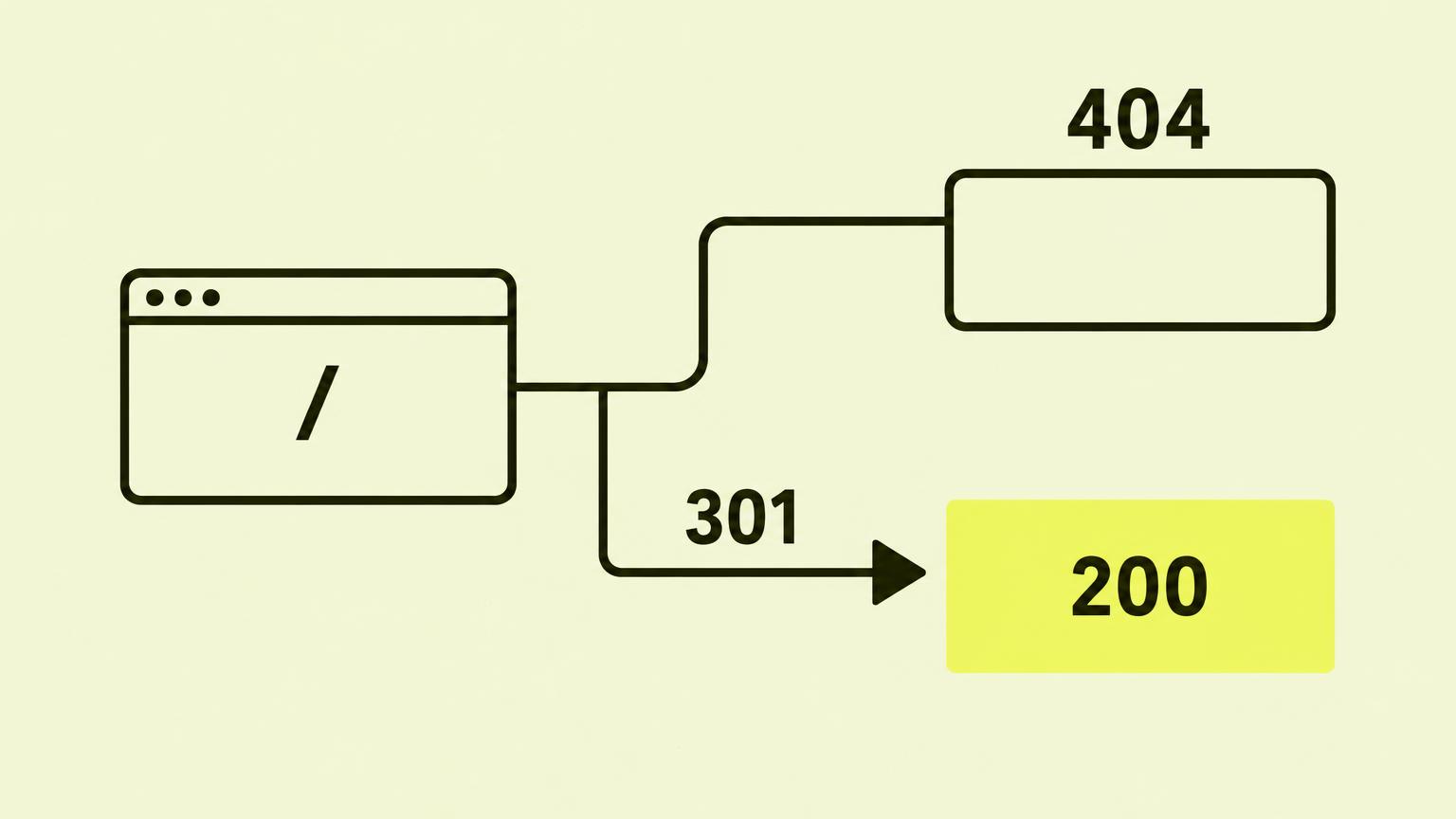
An old address returning a 301 can still end up on the wrong product, a new 404, or a chain with unnecessary intermediate hops. A redirect loop will prevent the user from reaching the page altogether.
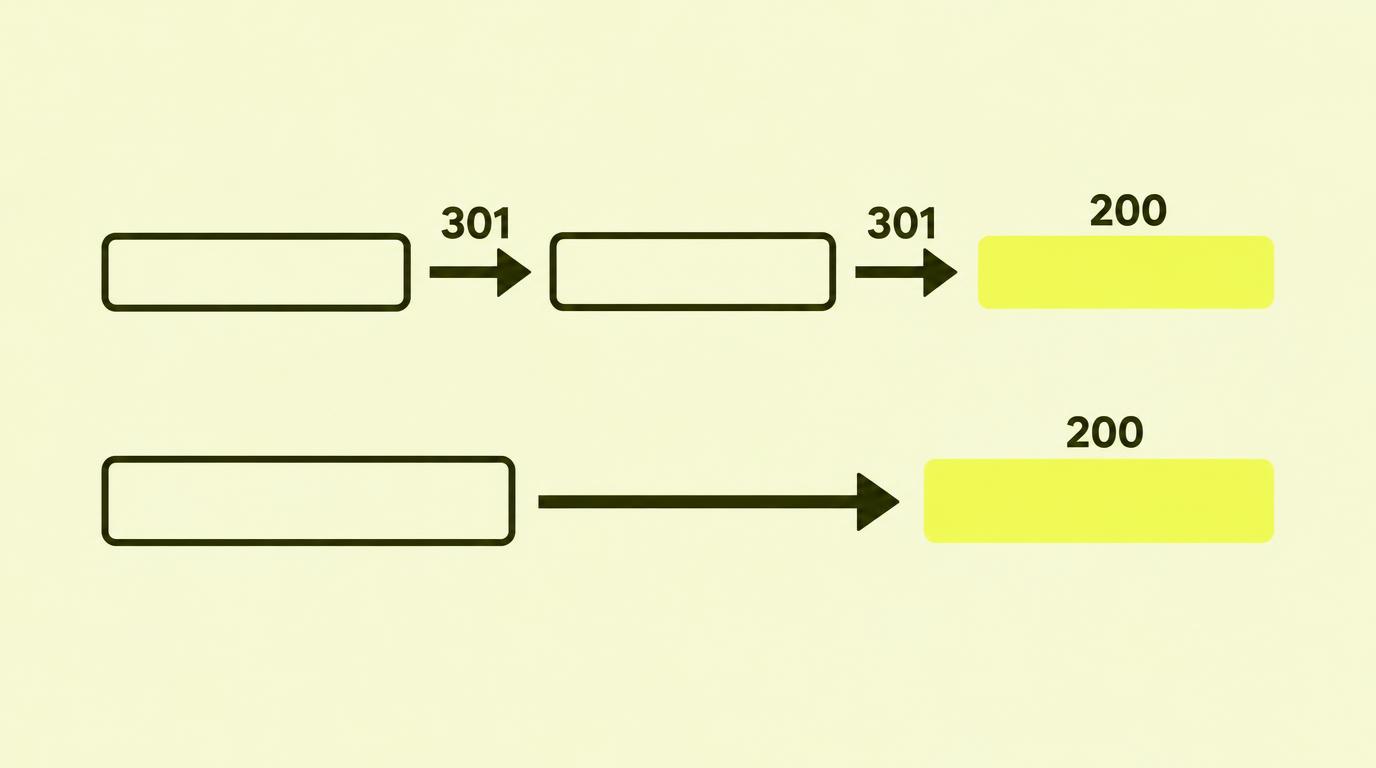
For permanent moves, a direct path to the relevant replacement is usually easier to monitor. You should also update internal links so they point straight to the new page.
Ending on a 200 status is only half the check. Open a sample of destinations and confirm that the content actually matches. The tool cannot determine whether a generic category page is a suitable replacement for a detailed product guide.
5. Compare before and after migration
Keep a record of your baseline URLs and results before launch. Afterwards, crawl the old addresses again to verify how they are handled. Inspect the new pages and internal links as well.
With a licence and database storage mode, you can use Screaming Frog’s built-in crawl comparison. It highlights changes in status codes, titles, site architecture, and more. Use identical settings for both crawls; otherwise, a change in your tool setup might look like an issue on the website.
Without this feature, you can check a defined sample manually, logging the old URL, expected destination, actual destination, and findings. Do not assume storage and export options work identically across all licence tiers.
Before signing off on the migration
- Old, high-value URLs checked against their expected replacement.
- Redirect chains and loops investigated.
- New destinations feature the right content, not just a 200 status.
- Internal links and sitemaps use the new addresses.
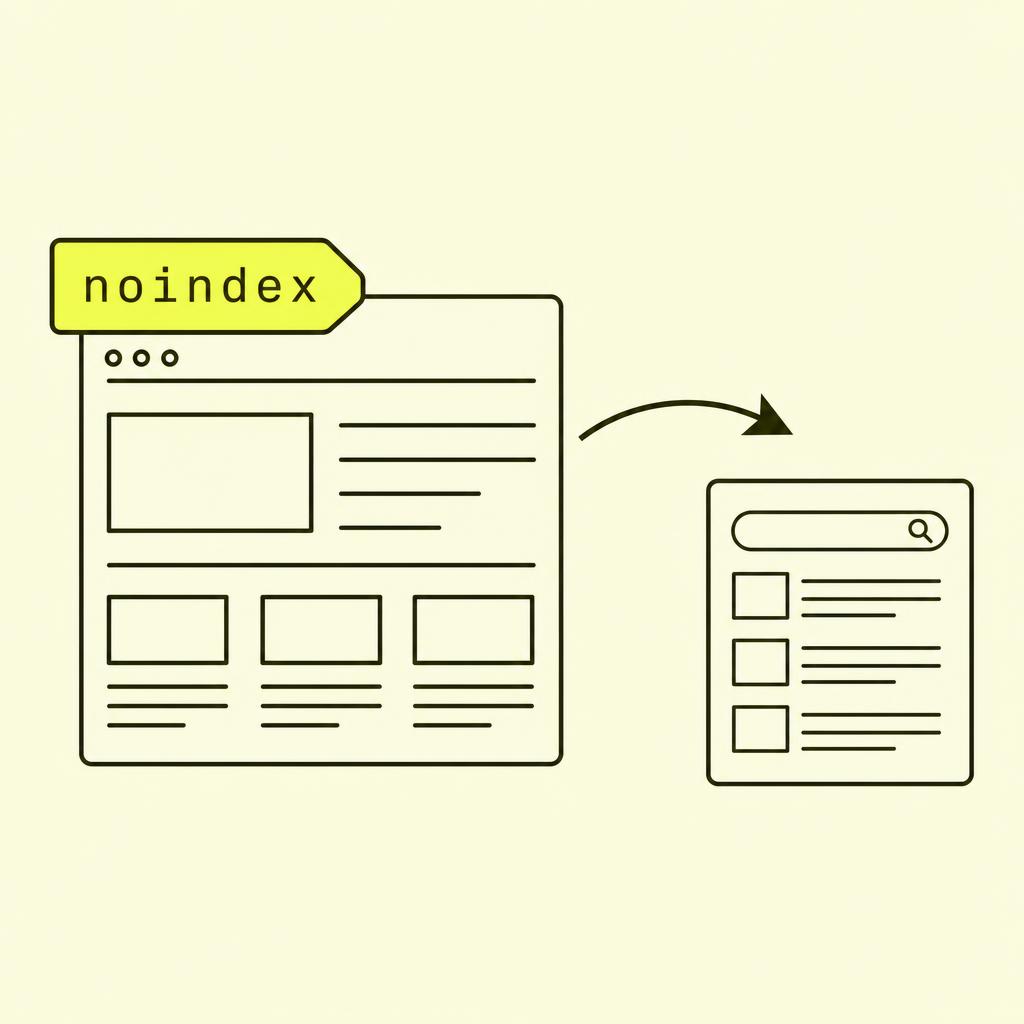
- Unwanted noindex tags, robots.txt blocks, and canonicals checked.
- Search Console and organic traffic monitored post-launch.
6. Do not confuse the crawl with Google
Screaming Frog can fetch a page that Google has not yet indexed. It can also run into access blocks or receive a different render than a search bot or browser with different settings.
Use Search Console to verify Google's reported index status. If your content loads via JavaScript, consider whether the crawl rendered the relevant version. Password protection and security rules can also skew your findings.
A solid audit therefore concludes with a short, prioritised to-do list and a follow-up crawl, not an unwieldy spreadsheet that nobody takes responsibility for resolving.